Start a chat.
 Call us.
 WhatsApp us.
 Create a ticket.
You are working in Divi, adjust a button, refine a text block and choose a great colour for your call to action. Then you open the next page and start all over again. That is exactly where a lot of time is lost. Divi global styling is designed to handle this more intelligently.
At Webtify, we are often asked how you can work faster in Divi without every page looking slightly different. The answer usually lies in global styles, presets and consistent design choices. When you use them well, you not only work faster, but your website also remains much more consistent.
What is Divi global styling?
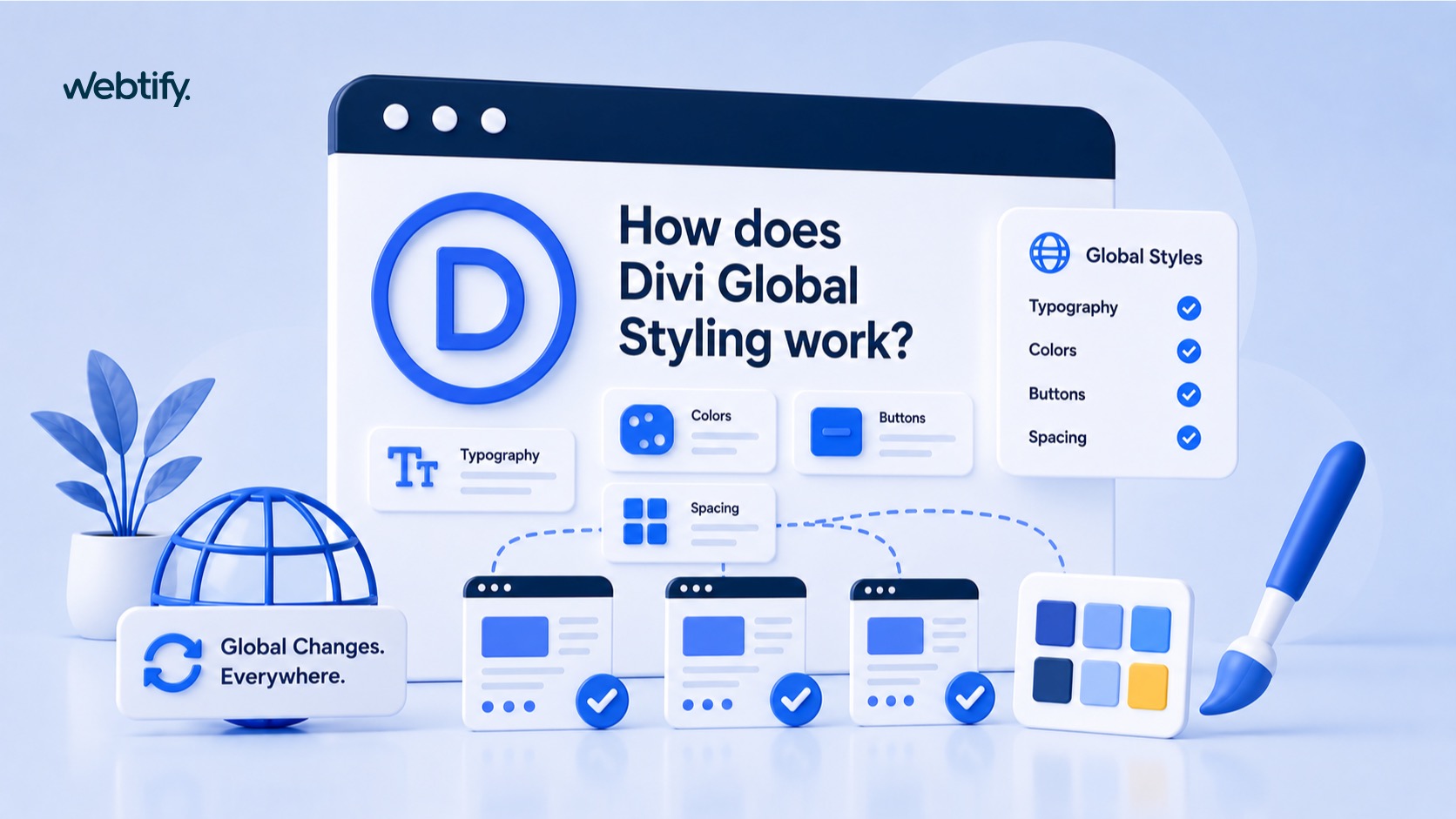
By Divi global styling, we mean all style settings that you manage centrally and then reuse across multiple parts of your website. Think of fixed colours, fonts, buttons, margins and module styling. Instead of styling individual elements manually, you are effectively building a small brand style guide within Divi.
According to Elegant Themes documentation, Divi uses Global Presets, global colors and, in Divi 5, Global Variables for this purpose. These let you save styles centrally and reuse them in multiple places later.
How does it work in practice?
The principle is simple: first, you define consistent style choices, then you link modules and elements to those choices. When you later change something centrally, Divi automatically updates it everywhere that style is used.
1. Global colours for consistent brand colours
Do you work with a primary colour, an accent colour and, for example, a fixed text colour? Then it is wise to save them as global colours. Elegant Themes explains that elements linked to such a global colour automatically update when you change that colour.
This is useful when you later refine your branding. You do not have to go through dozens of buttons or headings manually. One change can be enough.
2. Global Presets for modules
Do you often use the same button style, blurb styling or section layout? Then you can create a Global Preset for it in Divi. According to the official Divi documentation, you can save multiple presets for each element type and then apply them again to other modules.
Suppose you use three types of buttons: primary, secondary and subtle. Then you do not have to build them again and again. You save them properly once and then simply choose the right preset.
3. Set default styling
Divi also lets you set default settings for certain elements. For example, in the Theme Customizer, you can configure basic settings for typography, button styles, and layout. Especially if you’re just starting to build a website, this saves you a lot of corrective work later on.
Think of it as the foundation. The better it is set up, the less individual styling you will need to fix later.
Why does this work so much faster?
The biggest benefit of Divi global styling lies in repetition. Many websites consist of recurring elements: calls to action, text blocks, testimonials, forms and buttons. If you style each one separately every time, it takes time and increases the chance of small differences.
With global styles, you work more consistently. That is not only more attractive, but also more practical as your website grows. Do you add extra pages, landing pages or new sections later? Then you can build much faster with consistent blocks and styles. This fits well with our article about managing a Divi website.
What is the difference between Divi 4 and Divi 5?
The idea behind global styling is the same in both versions: style centrally and reuse it. However, Divi 5 takes this further with a more extensive system of presets and Global Variables. Elegant Themes explains that these variables can be used for colours, fonts, spacing and other fixed values.
As a result, global styling in Divi 5 feels even more like working with a real design system. If you would like to explore this further, also read our blogs about Divi 5 and the new possibilities in Divi 5.
How to approach Divi global styling intelligently
At Webtify, we often see entrepreneurs or site administrators start right away by designing individual pages. That works fine to begin with, but it quickly becomes messy. It’s smarter to establish a few fixed choices first.
- first determine your main colours and save them globally
- choose consistent styles for buttons, headings and text blocks
- create presets for elements you use more often
- use as few manual exceptions as possible
- afterwards, check whether the same elements really do have the same styling
When you work this way, your website remains clearer and easier to adapt. This is especially useful when multiple people work on a site or when you want to scale later.
A polished website starts with consistent choices
Divi global styling makes building in Divi faster, more consistent and much easier to manage. You define colours, presets and base styles properly once and prevent every page from becoming a custom job all over again.
This is already useful for small websites, but it becomes truly valuable as they grow. If you want to work more efficiently in Divi, global styling is not an extra feature but simply a smart foundation. And if you get stuck setting it up, that is often the first thing we look at at Webtify.
Divi global styling means managing styles such as colours, typography, buttons and module styling centrally. This lets you use the same style in multiple places and make changes more quickly later.
You use global colours for consistent colours that recur in multiple places. You use presets to save complete styles for modules or elements, such as a button or blurb with multiple settings at once.
Yes, global styling has been expanded further in Divi 5. In addition to presets, Divi 5 also uses Global Variables, which let you manage colours, fonts and spacing even more centrally.
Because you do not have to set recurring styles again and again. You create a style properly once and then reuse it, making it faster to build and keeping your website more consistent.
Yes. Even with a smaller website, it helps to set consistent colours, buttons and typography centrally. This makes your site clearer and prevents extra work when you add pages or want to make changes later.